What are the most common mistakes that can be made when using a scientific calculator? Calculators can help us a lot to solve mathematical problems, but you have to know how to use them well, and above all, use them correctly.
What is usually the problem? That you are not familiar with your new calculator. Don’t even think about taking a calculator you just bought to a test. You have to buy it at the beginning of the year and use it for a few months to get it. Use your calculator with class problems. Your teacher will probably help you discover the secrets and best tricks of your new calculator.
Below you will be able to discover what are the most common mistakes made when using scientific calculators. We have used several Casio models, some of the most popular currently for students, both in ESO or Baccalaureate and for university (Casio fx-85SP X II, Casio fx-570SP X II or Casio fx -991SP X II). And also some graphic model, like the Casio FX-CG50.
The errors are going to be very similar on HP or Texas Instruments calculators like the HP Prime or the TI-84 Plus CET.
Table of Contents
What are the most common mistakes you can make with your scientific calculator?
1.-You have to be clear about the keys of a scientific calculator and their uses
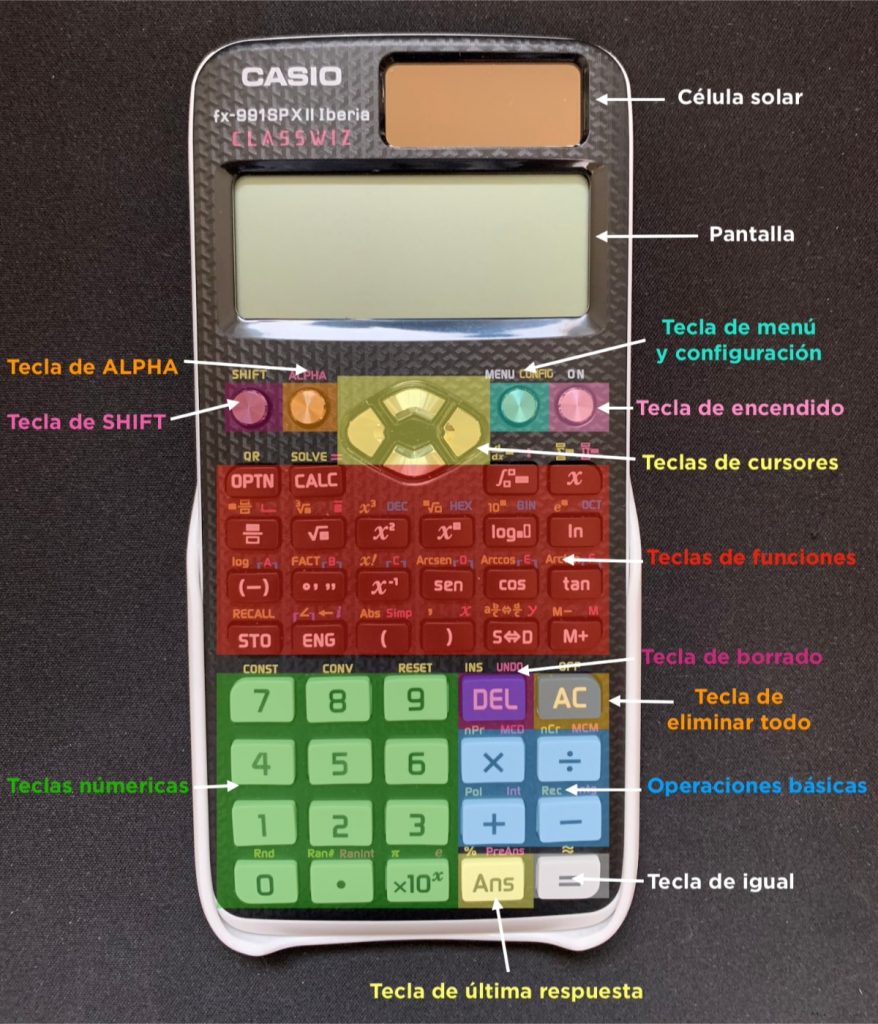
We start from the bottom left and go to the right. Then we go up the calculator to the screen:
- Green: number keys
- Yellow: ANS (last answer key)
- White: Equal key to give the results in the calculator
- Blue: basic operations like addition, subtraction, division or multiplication
- Purple: DEL (delete key)
- Orange: AC (Clear all key)
- Red: Function keys
- Purple: SHIFT key (you access other functions with the same keys in red)
- Orange: ALPHA (you access other functions with the same red keys)
- Cyan: Menu key and settings
- Pink: Power key
EYE! Very common mistake (1): The subtraction key  not to be confused with another key that is marked as
  . This key is used to change the sign of a number or an exponent.
EYE! Very common mistake (2): The order in which you enter a calculation matters a lot if you are using natural text input. You have to be very careful to place the parentheses correctly when performing the operation. Your calculator will normally perform multiplication and division operations before doing addition or subtraction. You can perform certain steps earlier as soon as you press the key  .
.
2.-Beware of exponents
Be very careful with this. Scientific calculators usually have several keys to enter exponents. Each one has a different function:
EYE! Very common mistake (3): If you are entering numbers in scientific notation you must use the key  .
.
3.-Scientific calculator modes
Scientific calculators have several ways to enter the data and depending on each of them we will have more or less functions and different ways of using them.
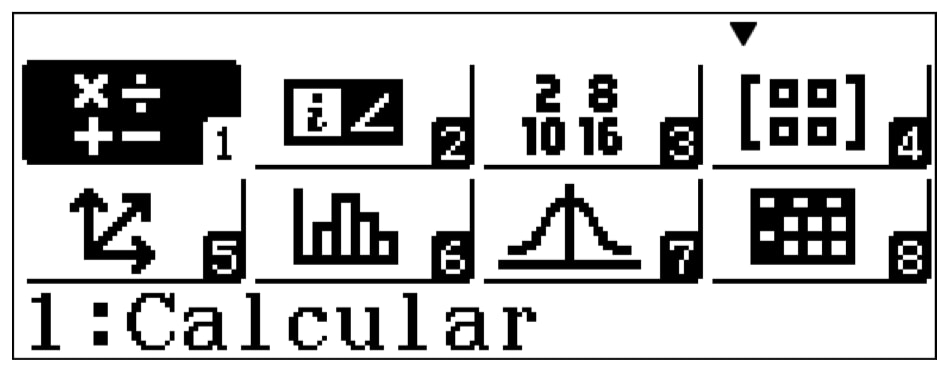
- Calculate: Normal calculation application
- Complex: Complex Number Calculations
- Base-N: Calculations with specific numbering systems
- Matrix: Calculations with matrices
- Vector: Vector calculations
- Statistics: Statistical and regression calculations
- Distribution: Calculations with distributions
- Spreadsheet: Spreadsheet Calculations
- Table: Generating a table of values from one or two functions
- A. Equation / Func: Solving equations and system of equations
- B. Inequality: Solving inequalities
- C. Verify: Verification of equalities
You have to be very careful and check what mode you are in when you are going to perform your calculations, since each mode has its secrets.
- You also have to be careful with the type of output: they can offer fractions or they can be decimals. You can change it with the key
 .
.
 .
.4.-Angle measurement
If you are solving problems with trigonometric functions (sine, cosine, tangent), you have to consider how the angles are measured.
Often times, math problems are solved using radians while science problems are solved using degrees. Scientific calculators can use both units of angle measurement.
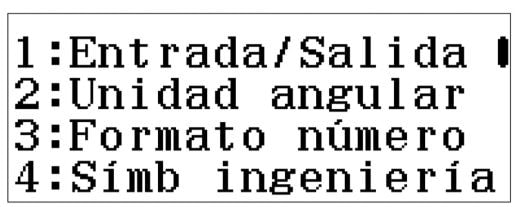
Some of the symbols will appear at the top of the screen: D/R/G: Indicates the current Angular Unit setting (D: Sexag Grade (D), R: Radian, or G: Cent Grade (G)) in the setting menu. If you squeeze  You will enter the menu to change the angle unit (2).
- Grade (D): A degree is 1/360 of the circumference of a circle. A grade is represented as 1st. (Example: sin 90 ° = cos 0 ° = 1)
- Radian (R): A radian is 1 / 2πr of the circumference of a circle. The measurement of angles by radians is called the “radial angle measurement system”. 1 radian = 360º / (2π) (Example: without 90 ° = cos 0 ° = 1)
- Centesimal degree (G): A centesimal degree is 1/400 of the circumference of a circle (Example: sin 100 grads = cos 400 grads = 1)
EYE! Very common mistake (4): You can easily forget that there are multiple units for angles and use the wrong one in your problem. FACT! Radian is the initial default angle mode for a graphing scientific calculator.
5.-Logarithms
Most calculators can do logarithms to base 10 or to base “e.” The button  makes logarithms to base 10 or to any base. The button
  logarithms to base “e”.
6.-Order of operations using parentheses
EYE! Very common mistake (5): Be very careful with this. It is very important to know how to use parentheses correctly, both in your calculations on paper and in the calculator. Be very careful with negative numbers.
It is a good idea to get used to closing the parentheses: don’t let the calculator do it for you. It is also convenient to use them alone when strictly necessary, that many times we go overboard and it will take longer to enter the expression.
You also have to be careful when placing powers in trigonometric functions (Inside the cosine? Outside the cosine?).
7.-Errors shown by the calculator
The calculator is very clever, and when you put any wrong operation (syntax error: Syn ERROR o Syntax ERROR) it will show you an error message on the screen. Pay attention to them. Many times they do not explain much but other times they do. You can press the left or right keys to go to the error in your calculation.
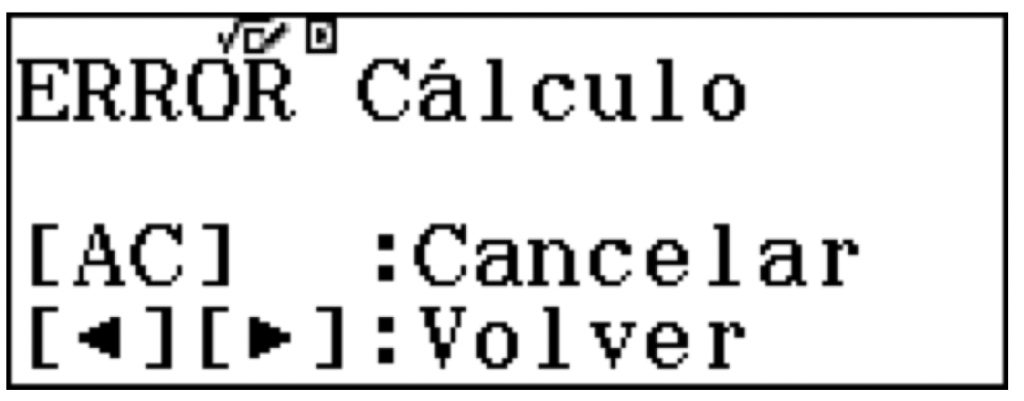
Many times a memory error can occur (Mem ERROR): This means that you have filled the memory of the calculator and that you have to free “space” in it. Make sure that the number of variables used in the expression does not exceed the number of allowed variables. It usually happens with matrices or with graphics.
ERROR registro (Stk ERROR o Stack ERROR): It is also possible that you have entered a very large calculation and that the calculator does not have the ability to solve it. Divide the calculation into several steps.
It may interest you:
Mathematical or Calculus ERROR (Ma ERROR or Math ERROR): You may be trying to perform an illegal math operation (such as division by zero). Check the entered values.
- You can consult the following Casio calculator guide to correct some of the most common mistakes that we make when entering this type of scientific calculator: Introduction to mathematics with Classwiz.